Providers


Providers |
|
|
These are the Administration Policies for the AI providers/models that Encompassing Visions currently uses for the WYSIWYG editor to generate the Accountability Statements and the Technical Requirements of the Job Description.
•Click on the Configure button to open the providers screen to add, edit, delete, manage models, import/export AI configuration window or Uplink Sync
•Click the Add icon
•Hover over each tooltip to help you with the content needed for each field. •Provide a Provider Name •Provide the Provider Type •Provide an Endpoint - this will be a specific web address where the software application will send requests and receive responses from the API (Application Programming Interface). It acts as a digital "doorway" or "meeting spot" for different systems to communicate and share data or functionality. •Provide the API key - this will be based on which service is being used by the organization (Microsoft/Google). •Provide the timeout session is defaulted to 20 sec. May be changed if required. •Check the Enabled box to have the provider available. •Click the Managed by Uplink box if the provider/modules should be managed by the Uplink Server. •Click Save
Select the desired Provider in the list and click
•Make required changes. •Click Save
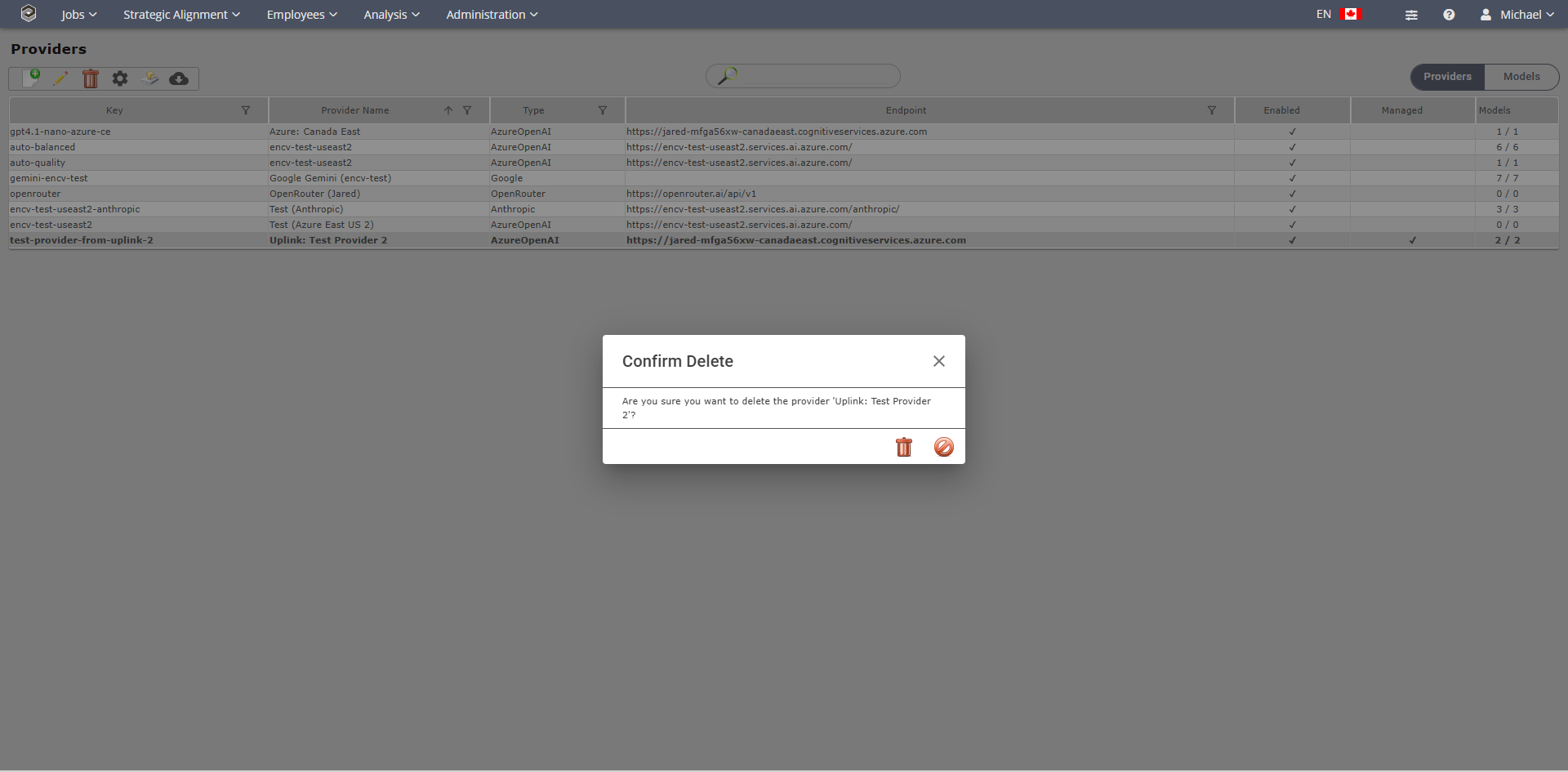
•Select the Provider to Delete. •Click the •A Confirmation Message Window will be displayed asking for confirmation of the delete:
•Click the •Click the •You will receive a green confirmation window if the provider was deleted successfully.
Note: the image below provides an example of providers. It may not be what you currently have in place.
•Click the manage models
•In this scenario, these two models are managed by the Uplink Server •Providers Page (/administration/model-providers) •A "Managed" column shows a checkmark for any provider where "Managed by Uplink" is enabled. •When editing a managed provider, a blue info banner appears at the top of the dialog: "This item is managed by the Uplink server. Changes you make may be overwritten during the next sync." •The "Managed by Uplink" checkbox can be toggled in the Edit Provider dialog. •When the Uplink API key is configured, a cloud sync button appears in the toolbar to manually poll the uplink server.
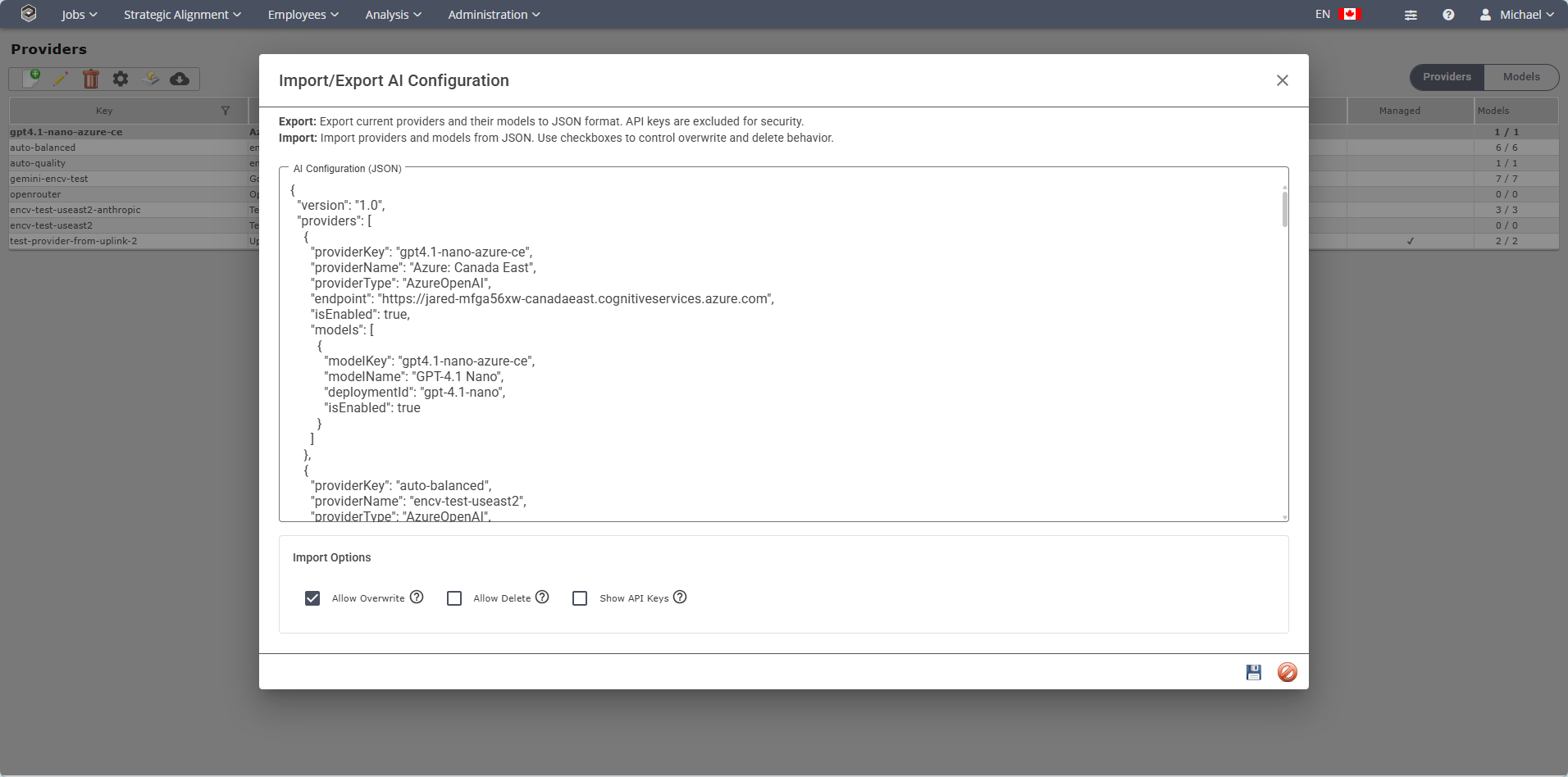
Import/Export AI Configurations •Click the Import/ Export •It will open up the Import/Export AI Configuration.
Verify the Import Options
Allow Overwrite - When enabled, existing providers with matching keys will be updated with imported values. Allow Delete - When enabled, providers not present in the import data will be deleted from the database. Show API Keys - When checked, API keys will be included in the export for easier import to other systems.
•Click Save
For more information on Models..
How sync works
|

 to add a new provider.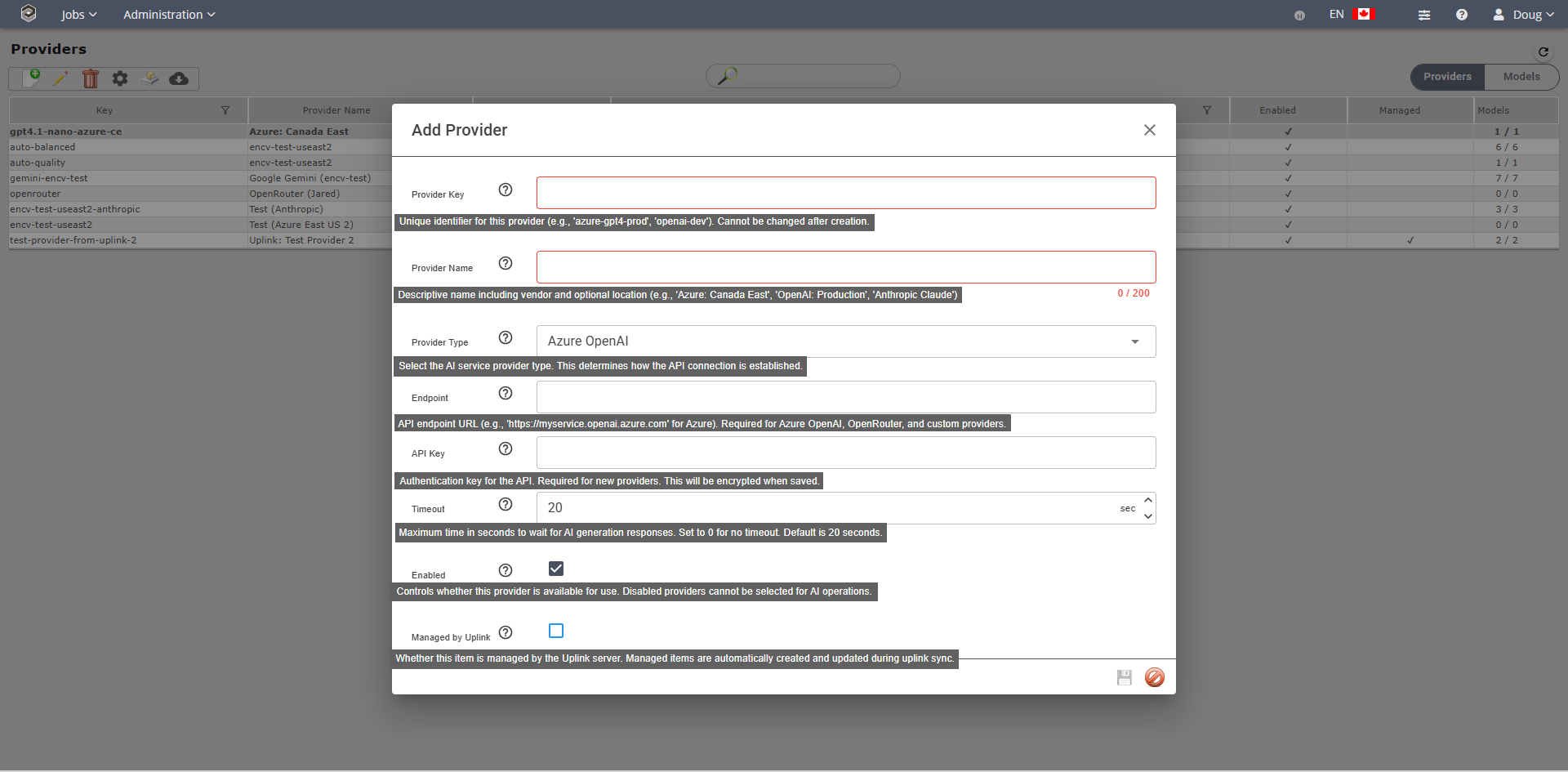
 to save the Provider or Cancel
  to close the window and not save the Provider.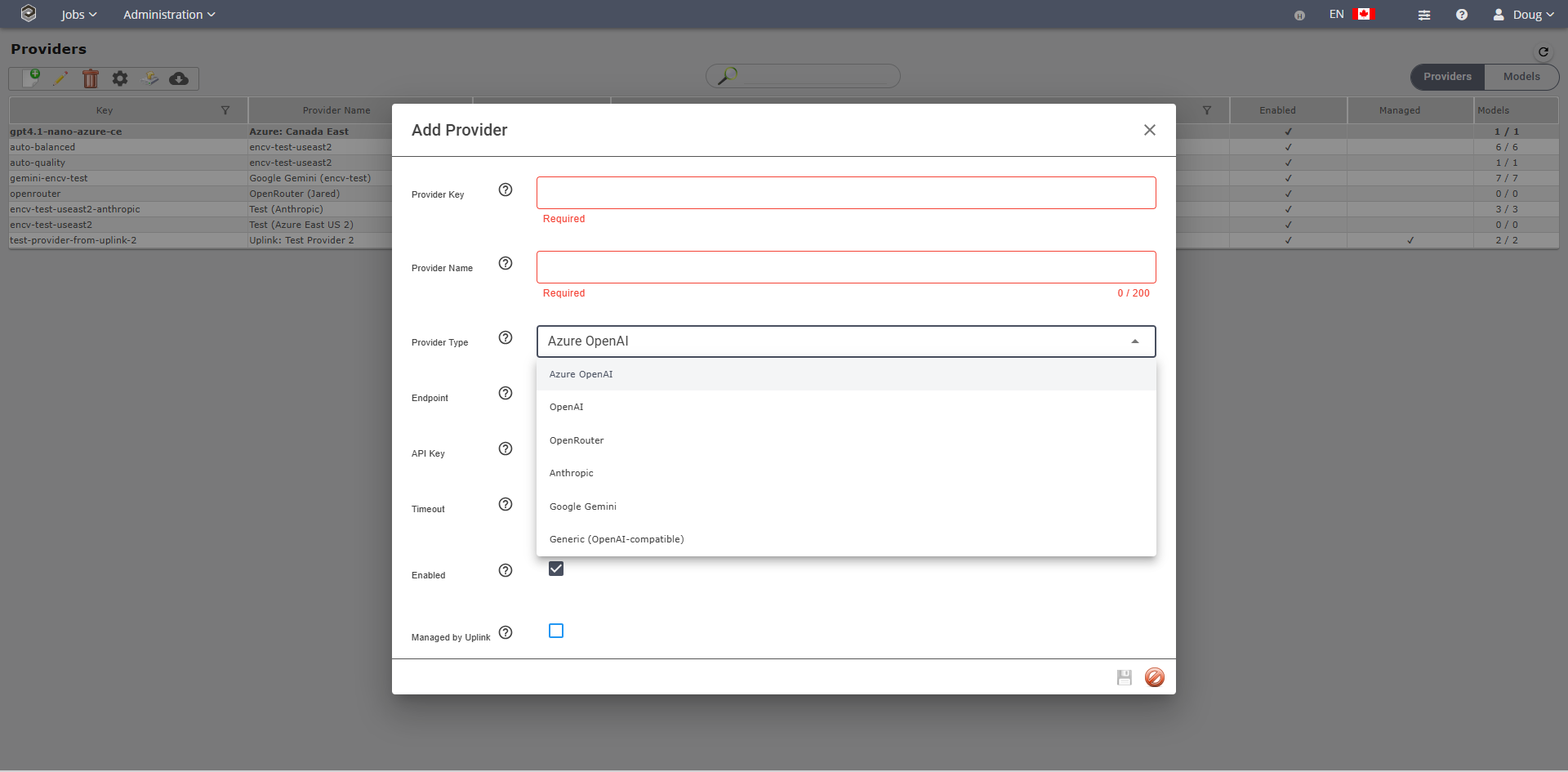
 or double-click the Provider to make changes.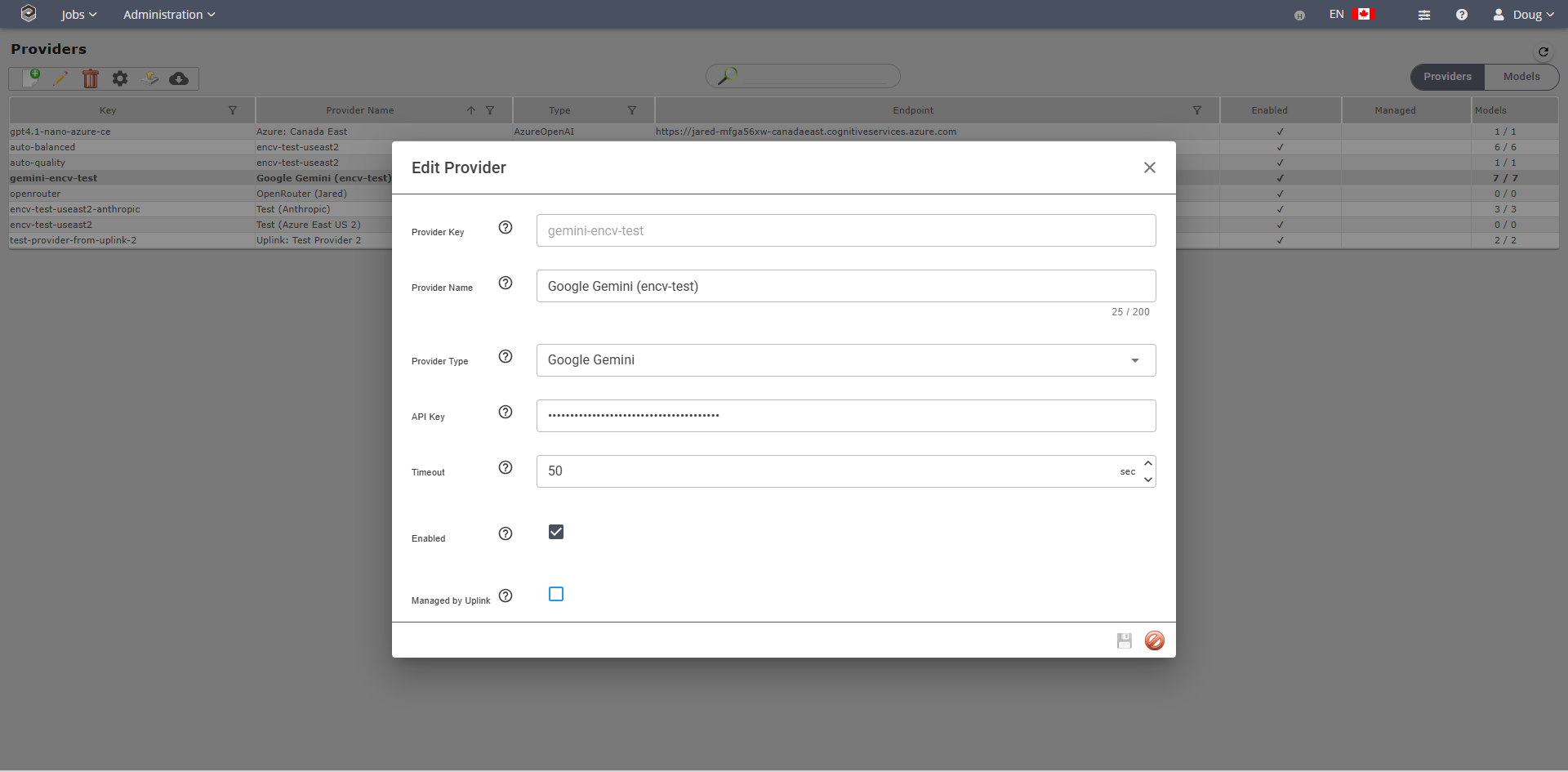





 icon.
icon.