Models


Models |
|
|
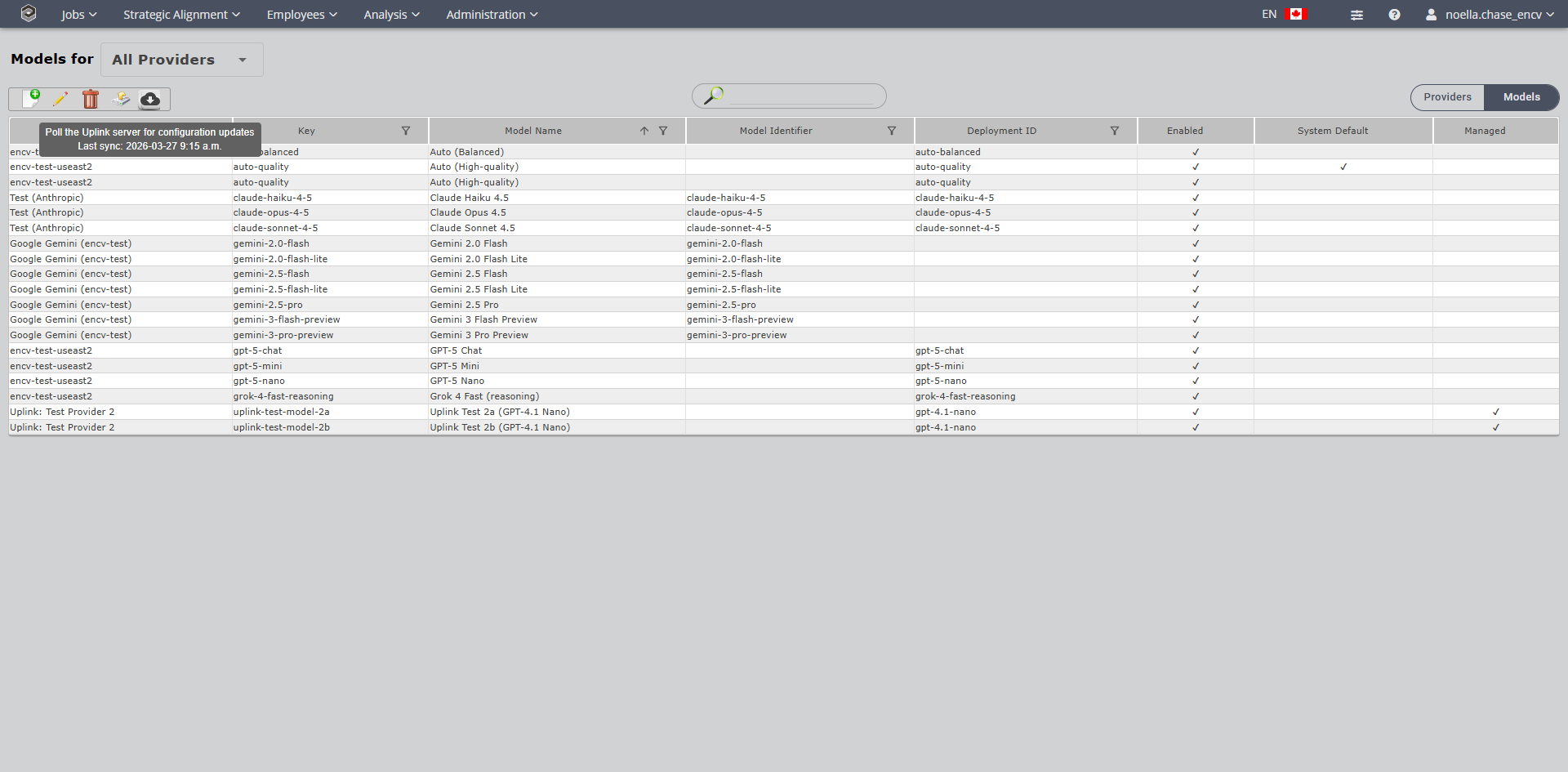
•Click on the Configure button •Models attached to each of the providers (previous screen) will show here.
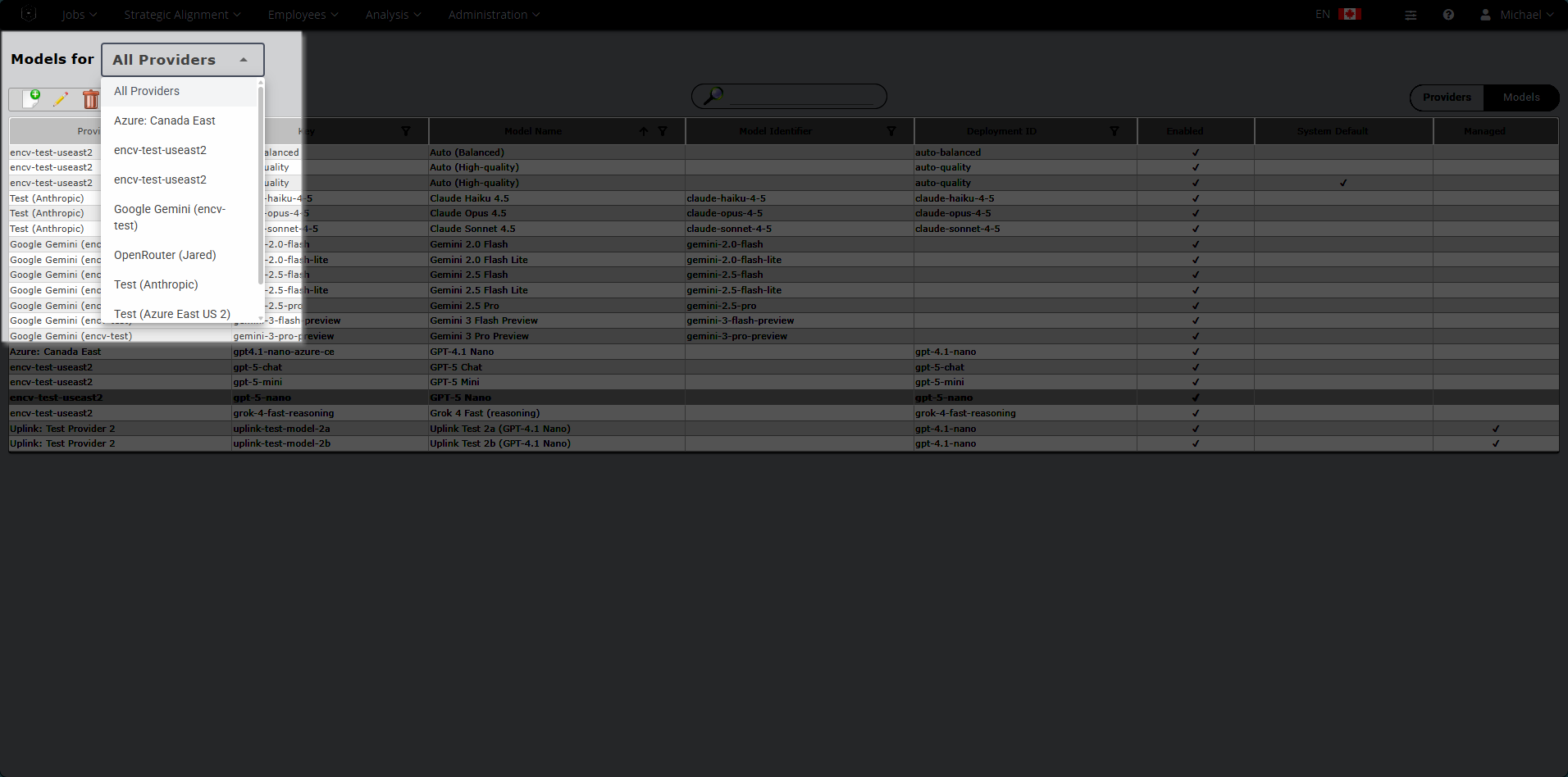
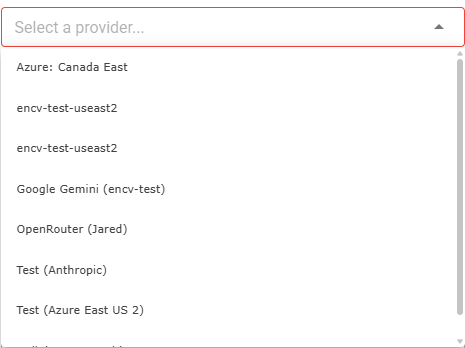
•You can see your Providers by using the drop menu at the top of the screen.
•Click the Add icon
•Hover over each tooltip to help you with the content needed for each field. •Select a Provider
•Provide a Model Key •Provide a Model Name •Provide a Model Identifier •If additional JSON Configuration for advanced settings is needed it may be entered here. •Click System Default if the model will be used as the default for users. •Click Save
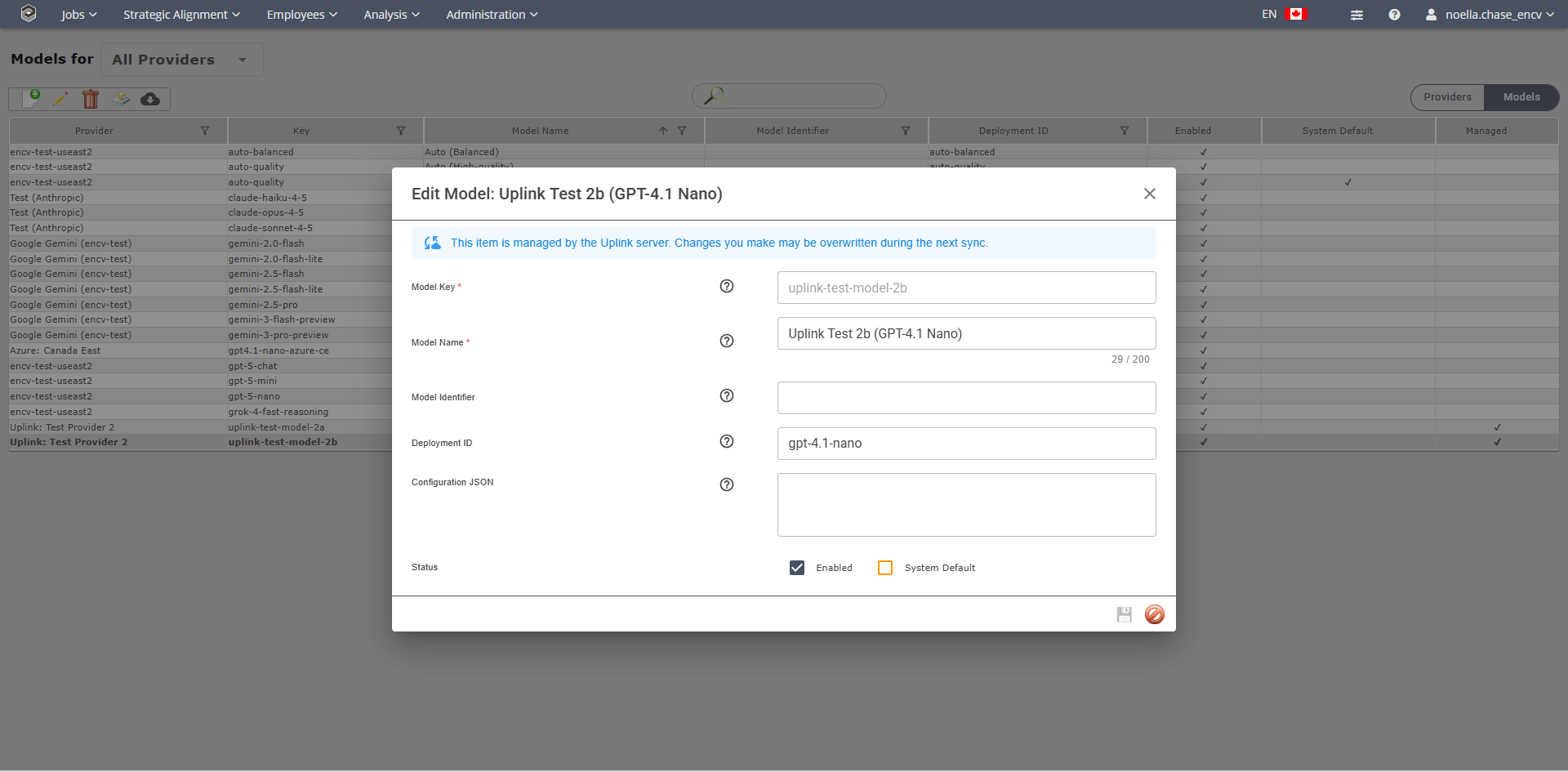
•Click the Edit icon
•Make required changes if necessary. •Click Save
•On the Providers screen, the Managed by Uplink box was clicked so that the provider/modelswill be managed by the Uplink Server.
•Select the Model to Delete. •Click the •A Confirmation Message Window will be displayed asking for confirmation of the delete:
•Click the •Click the •You will receive a green confirmation window if the model was deleted successfully.
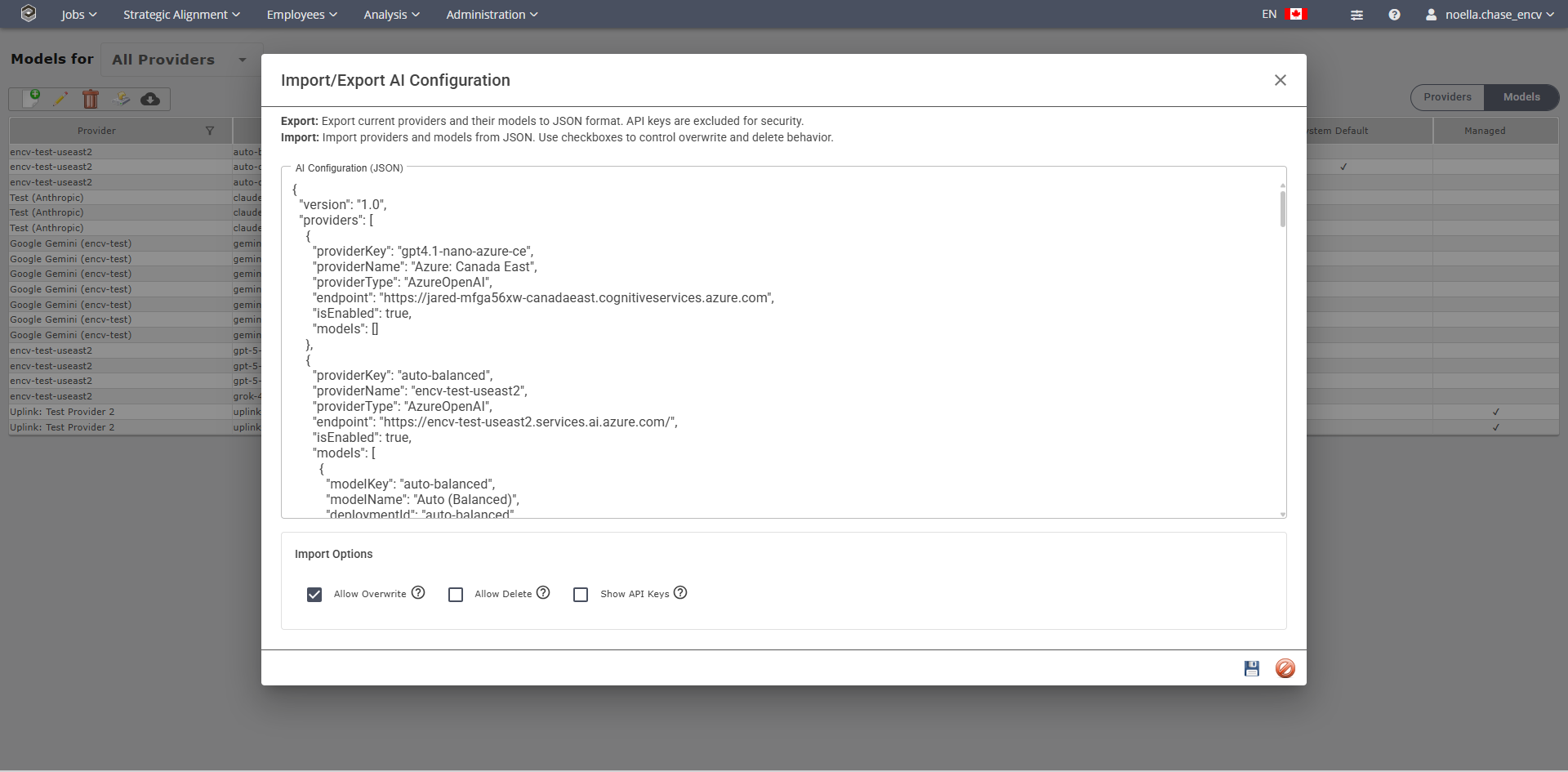
Import/Export AI Configurations •Click the Import/ Export •It will open up the Import/Export AI Configuration.
Verify the Import Options
Allow Overwrite - When enabled, existing providers with matching keys will be updated with imported values. Allow Delete - When enabled, providers not present in the import data will be deleted from the database. Show API Keys - When checked, API keys will be included in the export for easier import to other systems.
•Click Save
•When the uplink is polled (manually via the button or automatically via the background service), providers and models are synced from the uplink server. •The "AI Settings Uplink Mode" admin setting controls cleanup behavior: oUpdate and remove (Recommended): Syncs all providers/models from uplink. Removes any managed models that are no longer in the uplink data. oUpdate and disable only: Syncs providers/models but only disables (rather than deleting) items no longer in the uplink data. oDisabled: Skips AI configuration sync entirely (the API key can still be used for other uplink features).
Auto-Configure Modes (AI Settings Uplink Mode) •Disabled: Hides the download button entirely on Models and Model Providers pages; background service skips polling •Update and disable only: Orphaned managed providers/models are now disabled (not deleted) when no longer in uplink data •Update and remove: Unchanged (deletes orphaned managed items) •Local (non-uplink) providers are never affected by any mode New Setting: "Auto-update AI Settings" (boolean toggle, default: true) •Separated from the mode dropdown — controls whether scheduled background polling occurs •When disabled, the download button remains visible for manual downloads •Background service skips scheduled polls but respects manual button clicks Smart System Default Model •Uplink JSON now supports "isSystemDefault": true on a model •On download: if the current system default was uplink-managed, it updates to the new uplink-designated default •If the admin manually set a non-uplink model as default, the uplink will not override it •Export JSON also includes isSystemDefault for the current default Polling Resilience •Last successful poll UTC timestamp stored in tblValues (UplinkLastPollUtc) •On app startup, if a poll is overdue (elapsed > frequency), polls immediately to catch up after IIS AppPool recycles •Both manual and background downloads update the timestamp •Download button tooltip shows "Last sync: <datetime>" or "Last sync: never"
Any questions reach out to techsupprt@encv.com |


 to add a new model.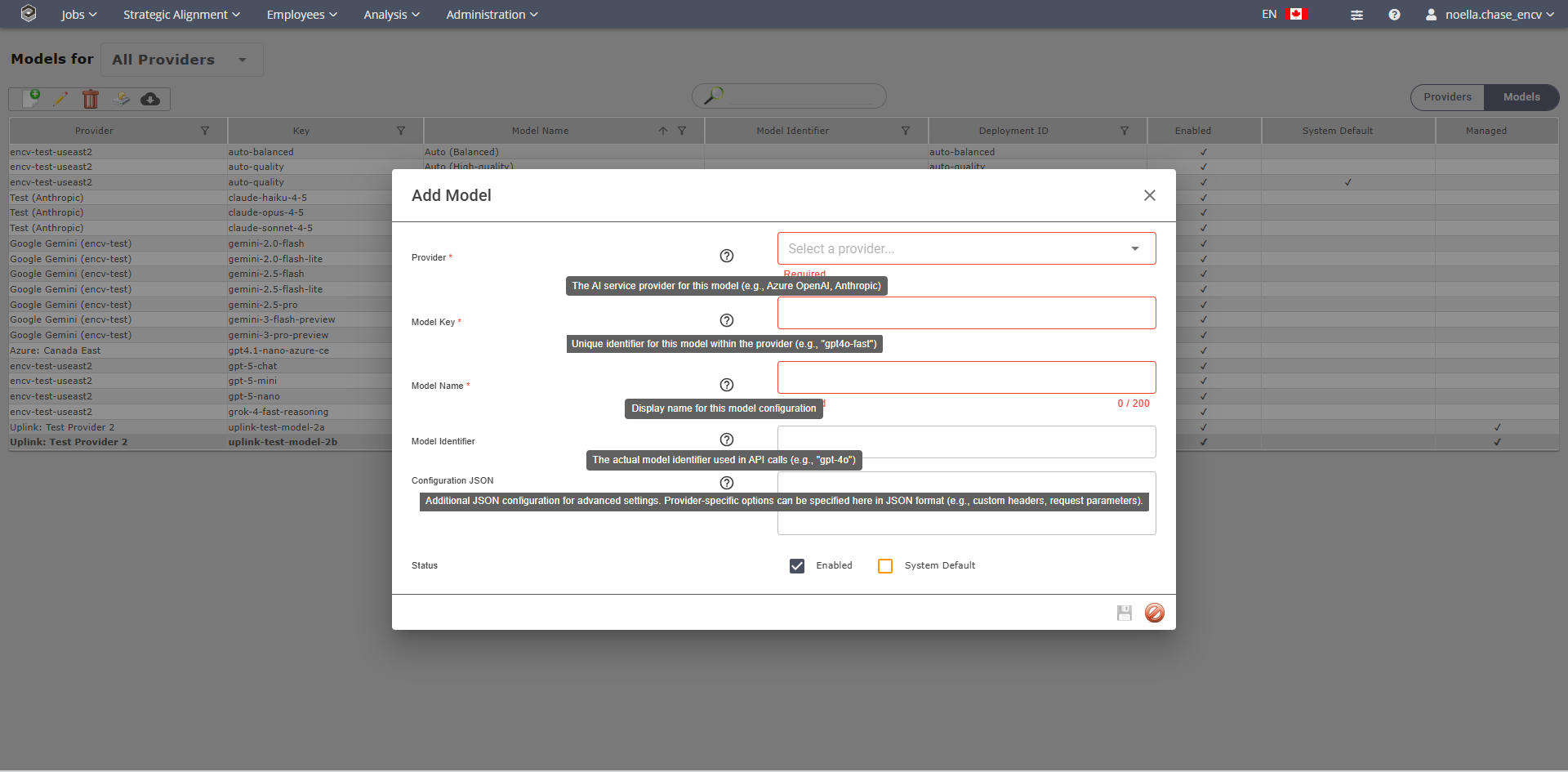
 to save the model or cancel
  to cancel and close the window
 to edit the model.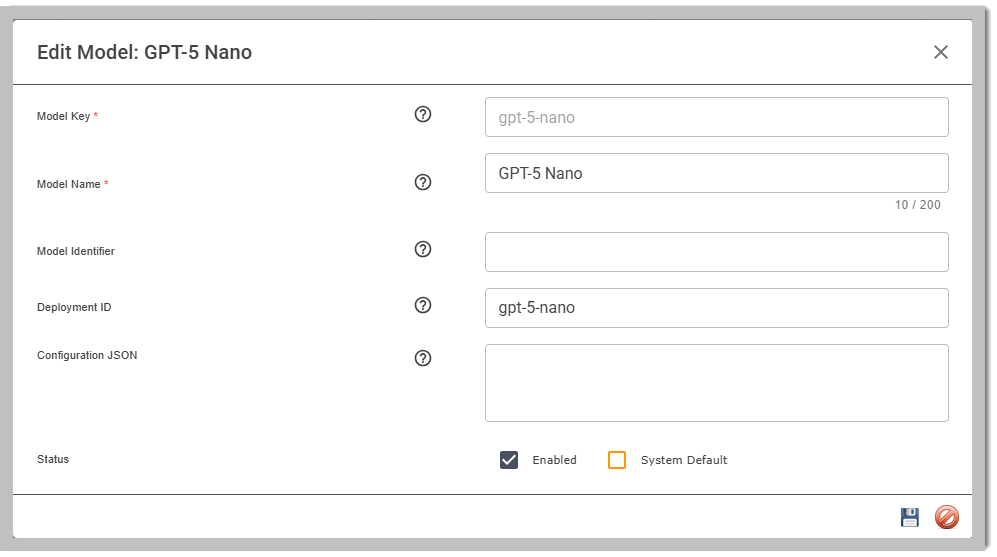



 icon.
icon.