AI Settings Evaluator


AI Settings Evaluator |
|
|
The AI Settings Evaluator
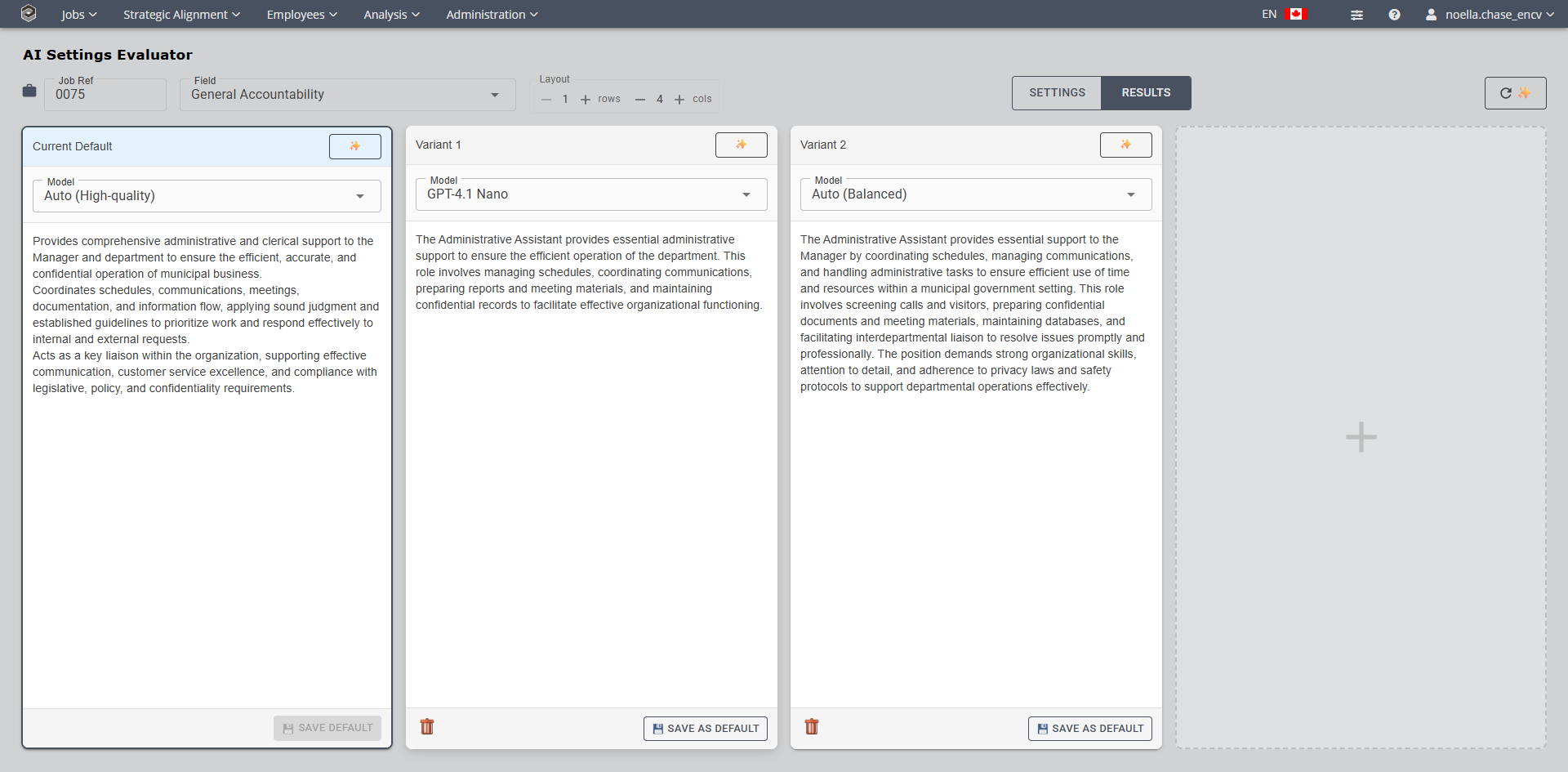
This enables administrators to select a job by its reference number and a specific text field (drop own menu) for: 1.General Accountability, 2.Specific Accountabilities, 3.Technical Requirements, 4.Nature of the Work.
Depending on which text field you are currently editing, it will pick up on the field with the current default.
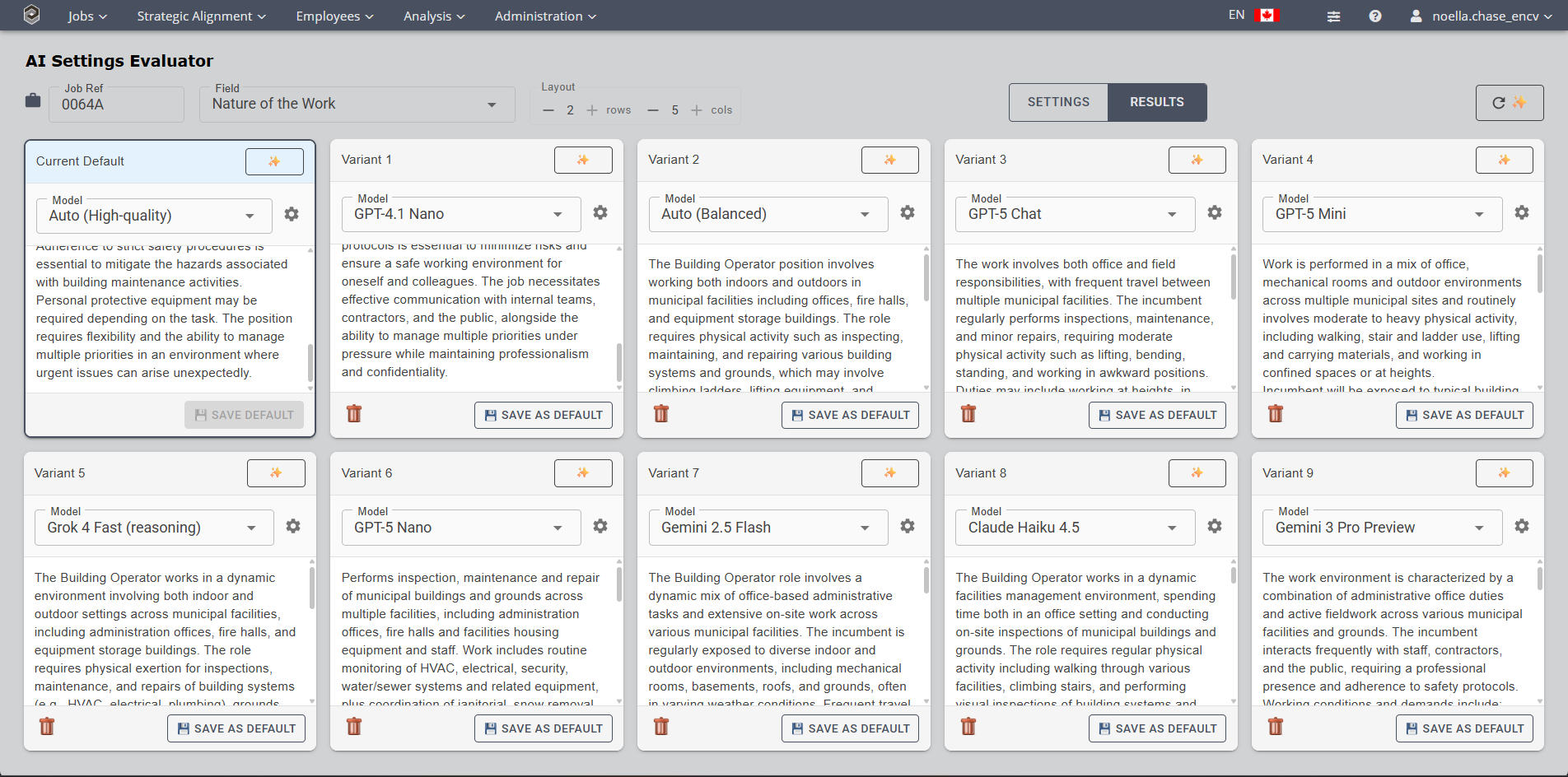
Create multiple "variants" with different AI settings -- including different language models and custom prompts. •Variants are displayed in a configurable grid layout (up to 2 rows by 5 columns) and can be run individually or in parallel, letting administrators compare the quality of AI-generated output across different configurations. Please note: your organization may not have set up multiple models for viewing various results.
You will notice in the image that the Nature of the Work Field has been chosen to test variants. The Model Gemini 2.5 Flash is the current default model being used. •Click the '+' icon to generate Variant 1 that will generate with a new model.
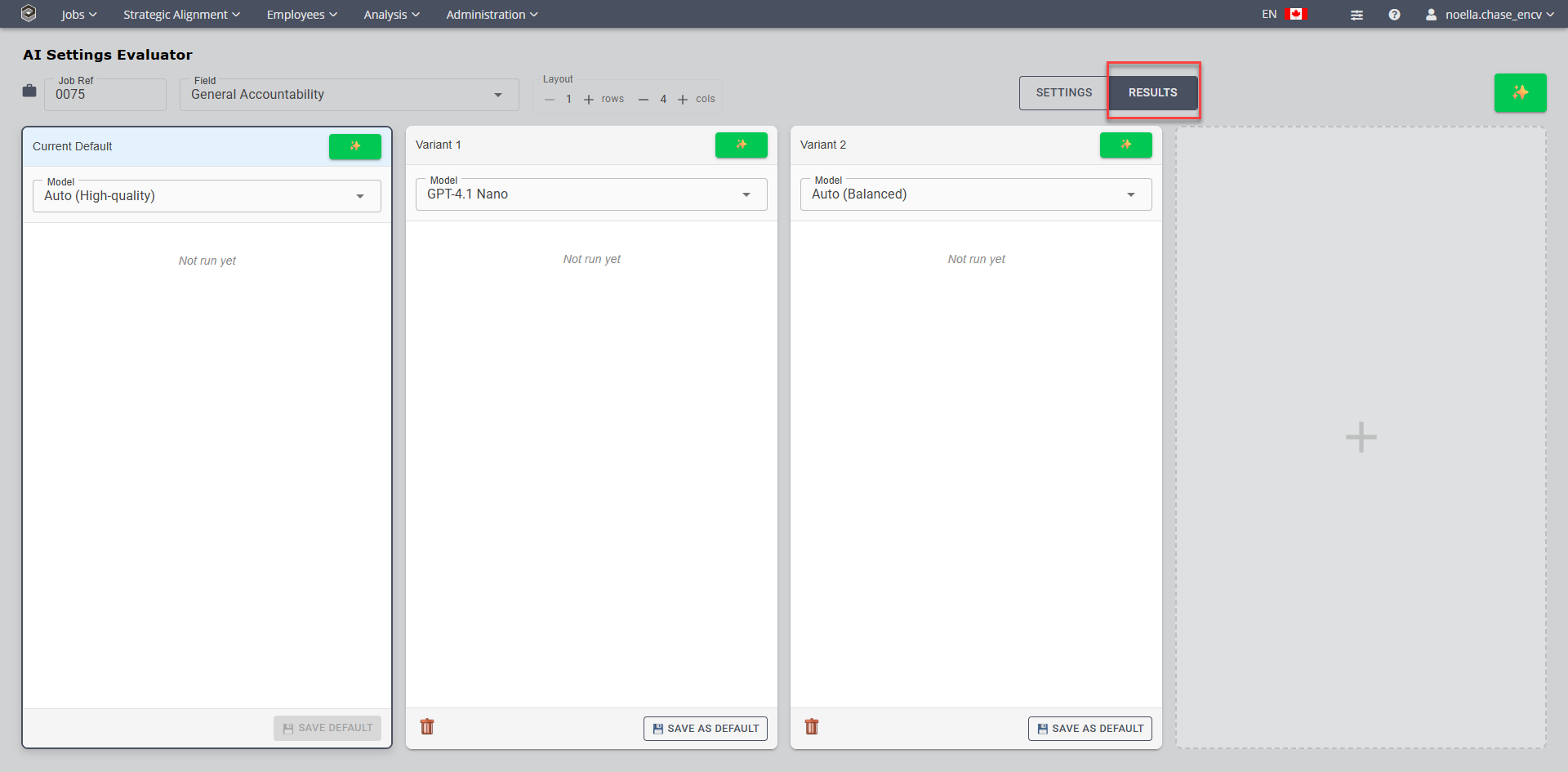
•Continue clicking the '+' icon to see different variants with different models. •Currently, this is the Settings Tab as highlighted to the right of the screen in the above image. •Click the Results tab •To run the results, click the
•Once the Variants have been generated, review or rerun the AI Generation
•Select the Variant for your default by clicking on the Save as Default icon •Variants can be removed by selecting the
•Once the administrator of Encompassing Visions finds the settings that produce the best results, they can save the variant's configuration as the default for all users, ensuring the organization's AI-assisted job description writing uses the optimal prompt and model settings.
|
 is an administrative tool for testing and fine-tuning the AI-powered job description generation system.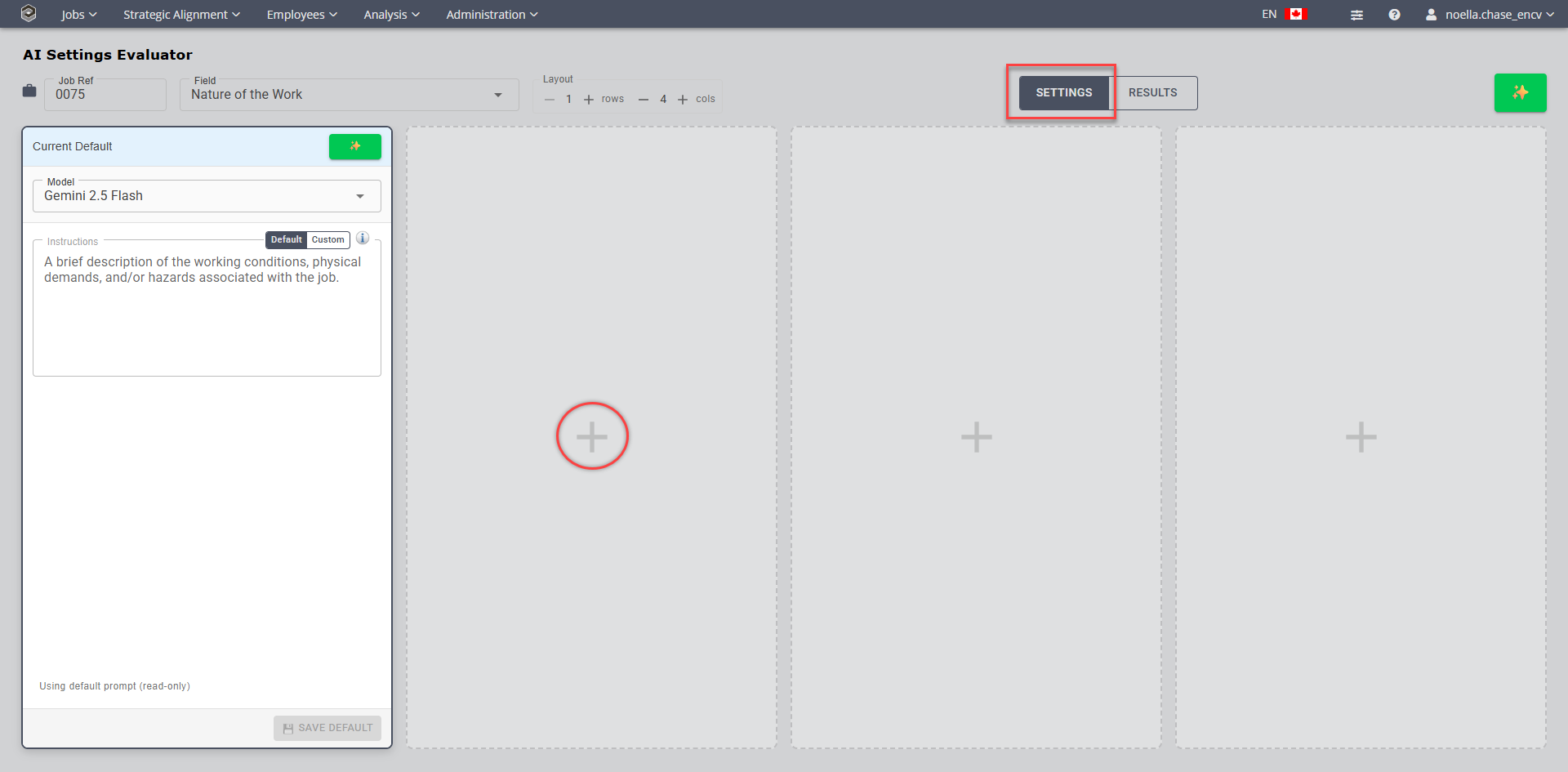
 icon to generate the results separately for each variant or click the
 or keep the original default.